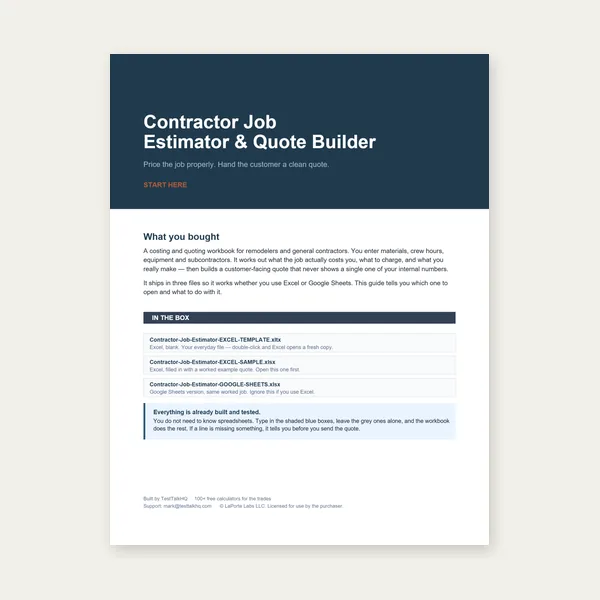
Contractor Job Estimator
Price remodels and GC work, then send a quote with no internal numbers.
Excel or Google Sheets. Best on a computer.
$29.00
BuyParse errors, unit surprises, pierce count mismatches, and export gotchas
When the DXF Viewer refuses a file, shows nonsense dimensions, or exports something you did not expect, start here. For a full walkthrough of pan, layers, delete, and export, read How to Clean Up a Messy DXF. If the same CAD export is broken every time, see Fix the File vs Fix the Source Drawing.
Most issues show up at load or in the stats panel. Fix export settings or cleanup steps, then drop the file again — the viewer does not hot-reload external edits from disk.
Open DXF Viewer →Symptom: Immediate error: Binary DXF not supported — export ASCII DXF (R12 recommended).
AutoCAD and many CAD programs can save binary DXF for smaller files. This tool only reads plain-text ASCII DXF. Binary files start with the header AutoCAD Binary DXF, which the parser rejects before geometry load.
Fix: Re-export from CAD with ASCII format. When available, choose R12/LT2 DXF or the oldest ASCII option — fewer exotic entity types, best compatibility with LINE/ARC/CIRCLE/POLYLINE parsing here and in the Cut-Cost Estimator / Sheet Nester.
Symptoms:
Fixes: Open in CAD and run AUDIT/RECOVER. Explode blocks so cut geometry is native LINE/POLYLINE. Convert splines and ellipses to polylines. Delete empty layers and re-save ASCII. If the file came from a PDF trace or third-party converter, re-export from the original solid model when possible.
If only dimensions fail but outlines look fine on screen in CAD, your cut geometry may live on a layer the exporter skipped — check layer visibility in CAD before export, not only in the viewer.
Symptom: A 100 mm slot measures as 100 in, or a 4 in hole reads 101.6 when you expected 4.
The viewer reads raw drawing units from the file. The in / mm dropdown on the stats card relabels numbers and formats the readout — it does not scale geometry. A file drawn in millimeters still contains millimeter coordinates when you switch the label to inches.
Fix: Know what unit the CAD model used at export. Either export in the unit you quote in, or mentally scale (mm → in ÷ 25.4). Measure a dimension you know from the title block or a physical part with calipers. If everything is off by exactly 25.4× or 0.039×, it is a unit label mistake, not bad geometry.
Pierce logic: each closed circle or closed polyline = one pierce. Each connected group of open lines/arcs/polylines = one pierce. Endpoints within tolerance merge into the same group.
Too high — common causes:
Too low — common causes:
Fix: Zoom corners on open polylines; close or join in CAD if the part must be one loop. Delete duplicates. Toggle layers and watch pierce count change — if it drops when you hide CONSTRUCTION, that layer was the culprit. Compare against CAM pierce table or manual count in Cut-Cost mode; see DXF vs Manual Entry when you override pierces manually.
Price remodels and GC work, then send a quote with no internal numbers.
Excel or Google Sheets. Best on a computer.
$29.00
BuyCheckout opens here — you stay on this page.
Tools to double-check measurements and pierce counts when the viewer numbers look wrong.
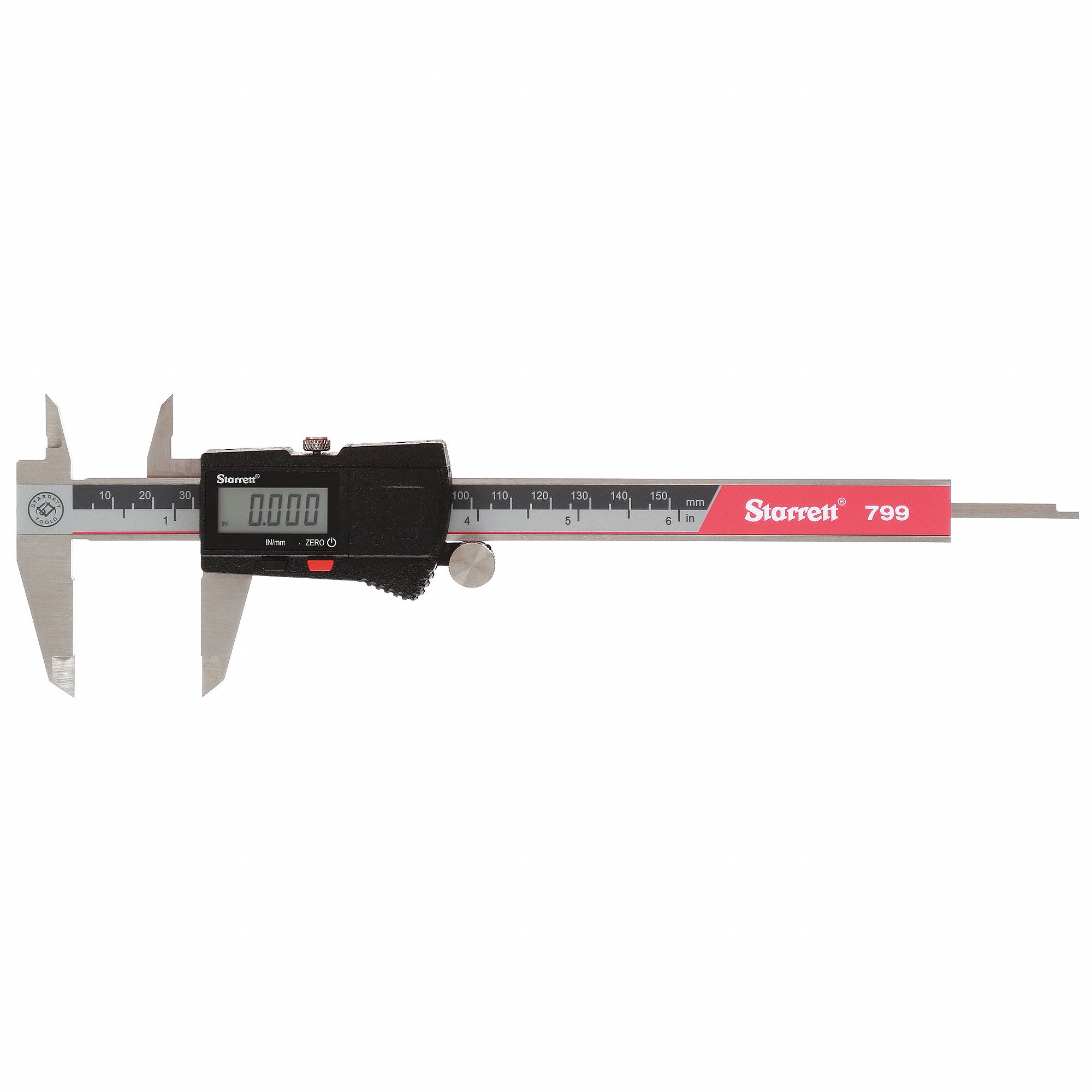
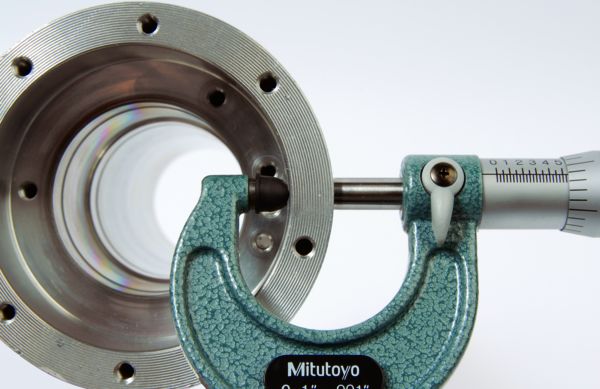
Affiliate links — we may earn a commission at no extra cost to you.
Symptom: You exported cleaned.dxf, re-opened it, and construction lines or duplicate parts are back.
Cause A — layer was hidden, not deleted: Export omits hidden layers. Re-import shows a clean file. If you re-check a hidden layer in the same session before export, those entities return. Fix: leave junk layers unchecked, or Delete entities you never want again.
Cause B — you opened the original file again: Export does not overwrite the vendor file on disk. Confirm the tab/filename is cleaned.dxf, not the old download.
Cause C — duplicate geometry on different visible layers: Auto-clean removes exact duplicates on the same geometry key, but two slightly offset copies on two cut layers both survive. Hide one layer or Delete one copy.
Cause D — downstream tool re-reads the wrong file: Cut-Cost or Nester may still have the previous upload cached in the same browser tab. Reload the page and upload the new export.
Small differences are normal — CAM adds lead-in/out, kerf compensation, and spline faceting. Large differences usually mean:
Use the viewer for sanity checks and relative comparisons (before vs after cleanup), not as a certified post processor. Calibrate Cut-Cost speeds to your machine after lengths look reasonable.
Walk through How to Clean Up a Messy DXF step by step. If every export from the same CAD template fails, stop patching and read Fix the File vs Fix the Source Drawing. Nesting-specific DXF issues (convex hull, oversize bbox) live in Common 2D Nesting Problems and Fixes.