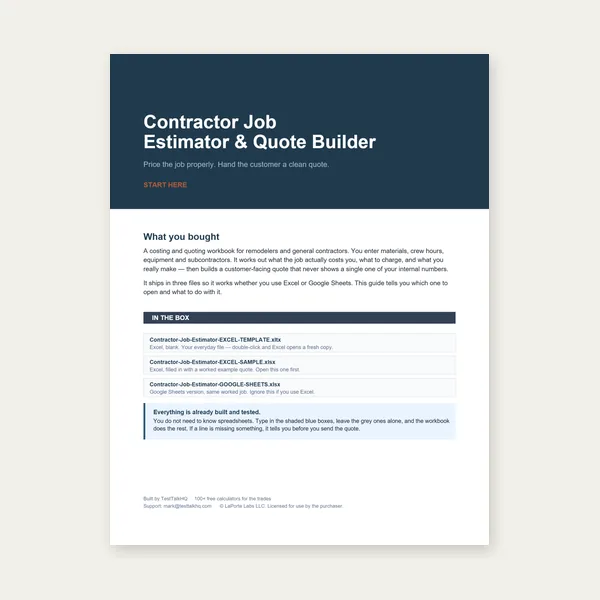
Contractor Job Estimator
Price remodels and GC work, then send a quote with no internal numbers.
Excel or Google Sheets. Best on a computer.
$29.00
BuyHow to enter stock, why remnants go first, and how to read the PDF cut list
Walk through the Cut List Optimizer: standard stock vs remnants, kerf, the layout diagram, PDF/CSV export, and an explicit note that Best-Fit Decreasing is a heuristic — not guaranteed optimal.

Enter stock and pieces, then export a PDF cut list. Remnants are consumed before fresh standard stock.
Open Cut List Optimizer →Kerf is the blade width lost at every cut between pieces on a bar. Set it to match your saw or process (bandsaw is often ~0.06–0.125"; chop saws and plasma take more). Switch units between inches and millimeters — values convert when you change units. Under-kerfing is the most common shop mistake: the layout looks fine on screen, then you run short on the floor. See Kerf Allowance — Why It Matters.
Standard stock lengths are lengths you can buy or have plenty of (e.g., 240 in / 20 ft bars). The tool treats them as unlimited supply. On-hand remnants are specific offcuts you already own, with a quantity. When the optimizer needs a new bar, it opens the smallest remnant that fits first, and only opens a fresh standard length if no remnant works. That matches how a real shop uses up owned offcuts before cutting into new stock.
Add each required length with quantity and an optional label (Leg, Rail, Brace). Labels appear on the layout diagram, PDF, and CSV so the cut list is readable on the floor.
Each row is one bar or board. Colored blocks are pieces; gray is end waste. The summary cards show bars used (remnant vs standard), material in pieces (yield %), total waste, and stock consumed including kerf loss. Warnings appear when a piece is longer than any stock (unfittable) or when remnant quantity runs out and no standard length was provided.
The PDF is a printable, bar-by-bar cut list with summary stats, proportional diagrams, and numbered cuts with start/end positions. The CSV is one row per cut (plus UNFITTABLE rows if any) for spreadsheets or CAM import. Both work in the standalone embed widget as well.
The algorithm sorts pieces largest → smallest, then places each into the started bar with the least leftover that still fits. True 1D bin-packing is NP-hard; BFD is a strong heuristic that usually comes close, but a hand-tuned layout can occasionally beat it. The tool states this on the page and PDF footer — always sanity-check before cutting expensive stock.
Tape measures, speed squares, soapstone, and bandsaw blades are the usual shop companions for marking and cutting stock to a cut list.
Price remodels and GC work, then send a quote with no internal numbers.
Excel or Google Sheets. Best on a computer.
$29.00
BuyCheckout opens in a new tab.