Bolt-Circle / Hole-Pattern Troubleshooting

Common problems and fixes for template printing, G-code setup, and drilling accuracy

Diagnose and fix the most frequent issues with the Bolt-Circle / Hole-Pattern Generator: printer scaling errors, angle convention confusion, G-code placeholder values left unedited, origin misalignment, wrong pattern type, and PDF multi-page tiling.

Back to the generator

Re-download the template or G-code after fixing your inputs. Always verify the reference square after re-printing.

Bolt-Circle / Hole-Pattern Generator →

Problem: Printer Scaled the Template — Reference Square Doesn't Measure Correctly

Symptom: You print the PDF and measure the labeled reference square (1 in or 50 mm) with a steel rule, and it comes up short or long — maybe 0.95 in when it should be 1.000 in, or 48 mm instead of 50 mm.

Cause: The printer driver or PDF viewer is set to "Fit to page," "Shrink oversized pages," or a custom scale percentage. Even a 5% error turns into 0.05 in per inch — over 1/16" across a 4-inch bolt circle.

Fix:

  1. Re-open the PDF in Adobe Reader, Preview (Mac), or your browser's built-in PDF viewer.
  2. In the print dialog, look for "Page Scaling" or "Scale" settings. Set it to "None" or "Actual size" or "100%". Do NOT choose "Fit," "Shrink," or any percentage other than 100.
  3. Print and measure the reference square again. If it's still wrong, check your printer's own settings panel (often accessed via "Preferences" or "Properties" in the print dialog) and look for any built-in scaling. Some printers have a "borderless" or "poster" mode that auto-scales — turn that off.
  4. If the printer physically cannot print without scaling (rare, usually only on very small label printers), you need a different printer. The template must be actual scale or the coordinates are useless.
Shop tip: Keep a known-good steel rule next to the printer. Measure every first print of a new template before taping it to expensive stock.

Problem: Hole Pattern Is Rotated — Angle Convention Mix-Up

Symptom: You drill the holes and the pattern is rotated compared to what you expected. A bolt circle that should have started at the top starts at 3 o'clock instead, or a linear pattern meant to run horizontally runs at 45°.

Cause: Bolt circle and linear patterns use different angle conventions. Bolt circle: 0° = top (12 o'clock), increasing clockwise. Linear: 0° = right (+X), increasing counterclockwise (standard Cartesian). If you expected one and the calculator used the other, the whole pattern rotates.

Fix:

  • Bolt circle: If you wanted the first hole at 3 o'clock (+X, right), set start angle to 90°. If you wanted it at 6 o'clock (bottom), set start angle to 180°. If you wanted 9 o'clock (left), set 270°.
  • Linear: If you wanted the line to run vertically (up), set angle to 90°. If you wanted it to run at 45° up and to the right, set 45°. If you wanted horizontal left, set 180°. The calculator always measures counterclockwise from +X (right) for linear patterns.

Check the on-screen preview before you download. The preview shows exactly where holes will be. If the preview looks wrong, adjust the angle input and re-check.

Remember: Bolt circle = clockwise from top. Linear = counterclockwise from right. Grids have no angle input — they always align to X and Y axes.

Problem: CNC Crashed or Cut Air — G-code Ran with Placeholder Values

Symptom: You load the .nc file onto the machine and hit cycle start. The spindle rapids to an unexpected height, plunges too deep or not deep enough, feeds way too fast or way too slow, or the machine faults out with an error about invalid Z or R values.

Cause: The exported G-code is a starting template. The safe Z, retract (R), depth (Z), and feed (F) are placeholder values with "( EDIT" comments next to them. If you run the file as-is, you're using generic dummy numbers that don't match your setup, stock thickness, or material.

Fix:

  1. Open the .nc file in a text editor, the TAP File Editor, or your CAM software.
  2. Find every line with "( EDIT" or "EDIT:" in the comment. Common placeholders:
    • Safe Z: Set a clearance height that's above your stock and all fixtures. Example: G0 Z0.5000 for half an inch above the surface, or Z10.000 for 10 mm.
    • Retract (R): Height above the hole where the drill slows from rapid to feed. Usually a few hundredths of an inch or a couple mm above the surface. Example: R0.1000 (0.1 in) or R2.000 (2 mm).
    • Depth (Z): Final drill depth. Negative value below the origin. For a through-hole in 0.25 in plate, Z-0.3000. For a 10 mm deep blind hole, Z-10.000.
    • Feed (F): Drill feed rate in inches/min or mm/min. Look up the correct feed for your spindle RPM, bit diameter, and material. Example: F5.0 (5 in/min), F125 (125 mm/min).
  3. If you're drilling deep holes in steel or aluminum, change the drill cycle from G81 (simple drill) to G83 (peck drill) and add a Q parameter for peck increment. Example: G83 R0.1000 Z-0.5000 Q0.1000 F5.0 pecks 0.1 in at a time.
  4. Save the file and verify it in a G-code simulator or your machine's graphics mode before running on the actual part.

Problem: Origin Misalignment — Holes Don't Land Where Expected on the Stock

Symptom: You tape the template to the stock and drill through the punch marks, but the holes end up in the wrong absolute position on the part. The pattern itself looks correct (hole spacing and angles are right), but it's shifted X or Y compared to where you wanted it.

Cause: The template's origin (0,0) crosshair wasn't aligned to the correct reference point on the stock. For a bolt circle, (0,0) is the center of the circle, not the first hole. For a grid, (0,0) is the reference corner (usually bottom-left if not centered). For a linear pattern, (0,0) is the start of the line (or the center if you checked "center on origin").

Fix:

  1. Before you tape the template, mark (0,0) on the stock with a scribe line, center punch, or edge-finder measurement. If you're drilling a bolt circle on a flange, (0,0) is the center of the flange — not one of the holes.
  2. Tape the template so the printed origin crosshair lands exactly on your marked reference point.
  3. Double-check alignment before you punch. If the template has multiple pages tiled together, assemble and align all the seams first, then tape the whole assembly as one unit to the stock.

For CNC drilling with G-code, zero the machine X and Y at the same (0,0) point you would use for the paper template. Use an edge finder, probe, or known fixture reference to set the origin accurately.

Problem: Wrong Pattern Type — Expected a Bolt Circle but Got a Grid

Symptom: You enter dimensions and the on-screen preview shows a completely different pattern shape than you expected. You wanted 6 holes around a circle, but the preview shows a 3×2 grid instead.

Cause: The pattern type tabs at the top of the calculator (Bolt circle / Grid / Linear) select which math the tool uses. If you have "Grid" selected when you meant "Bolt circle," the tool interprets your inputs as columns, rows, and spacing — not BCD and hole count.

Fix:

  1. Look at the three tabs near the top of the input panel: Bolt circle, Grid, Linear.
  2. Click the correct tab for your pattern. The input fields will change to match.
  3. Enter your dimensions and check the preview again. If it's still wrong, verify your inputs (BCD, number of holes, spacing, etc.) match what you actually want.

The preview is always live — it updates as you type. Use it to catch this kind of mistake before you download the PDF or G-code.

Problem: Too Many Holes or Confusing PDF Tiling

Symptom: You enter a large bolt circle diameter or a grid with many columns and rows. The PDF comes out with dozens of pages, or the preview shows hundreds of holes and you're not sure if that's correct.

Cause: The calculator tiles large patterns across multiple letter-size pages so they print at actual scale. A 20-inch-diameter bolt circle won't fit on one 8.5×11 sheet. Also, if you accidentally enter 50 holes when you meant 5, the preview will show all 50.

Fix:

  • Check the hole count in the readout panel. The on-screen preview shows "Holes: N" in the summary stats. If it says "Holes: 120" and you expected 12, you probably typed an extra zero somewhere.
  • For large patterns that tile across pages: Print all the pages, cut out each one, and tape them together along the dashed seam lines marked "TAPE / OVERLAP NEXT PAGE ->" or "TAPE / OVERLAP NEXT PAGE (DOWN)". The overlap region is built in — align the dashed lines and tape. Once assembled, you'll have one large template at full scale.
  • For grids: Double-check columns × rows = total hole count. A 10×10 grid is 100 holes. If you only need 10 holes total, you probably want 10 columns and 1 row (or vice versa), or a 5×2 grid, etc.
Shop tip: For very large patterns (over 50 holes or spanning more than 3–4 pages), consider using the CSV export instead of the paper template. Import the coordinates into CAD or directly into a CNC program. It's faster and more accurate than taping together a poster-size printout.

Welding

Welding Reference Card

Welding Reference Card

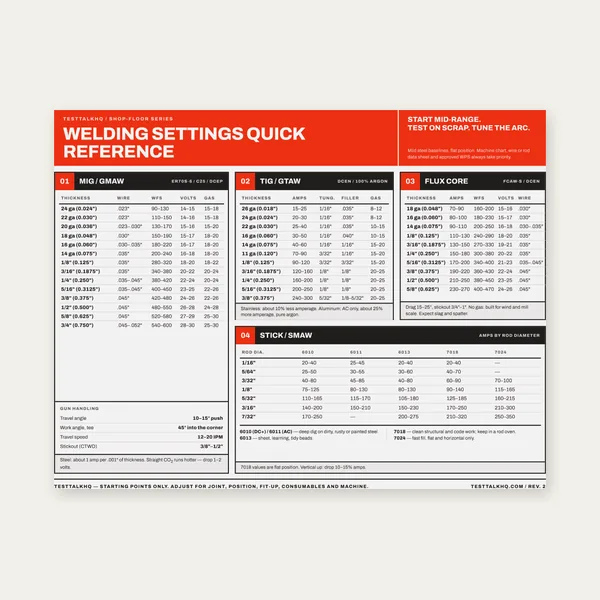
One page. MIG, TIG, stick and flux core settings by thickness.

$3.99

Buy
Complete Welding Settings Guide

Complete Welding Settings Guide

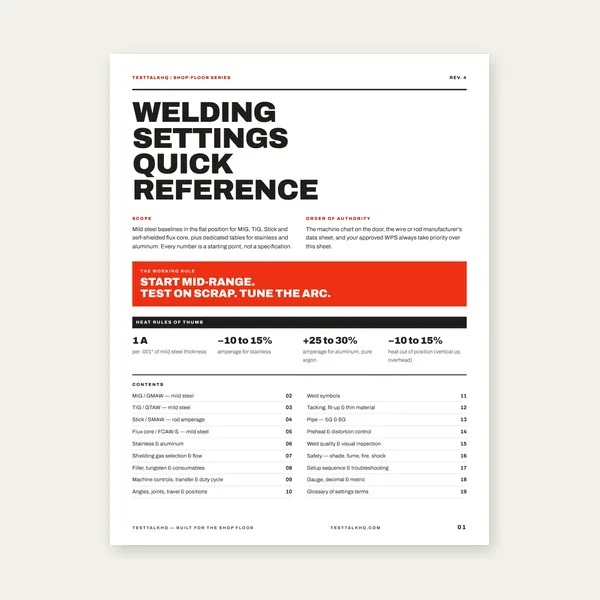
19 pages. Four processes, stainless and aluminum, symbols and inspection.

$12.99

Buy
Welding Job Estimator

Welding Job Estimator

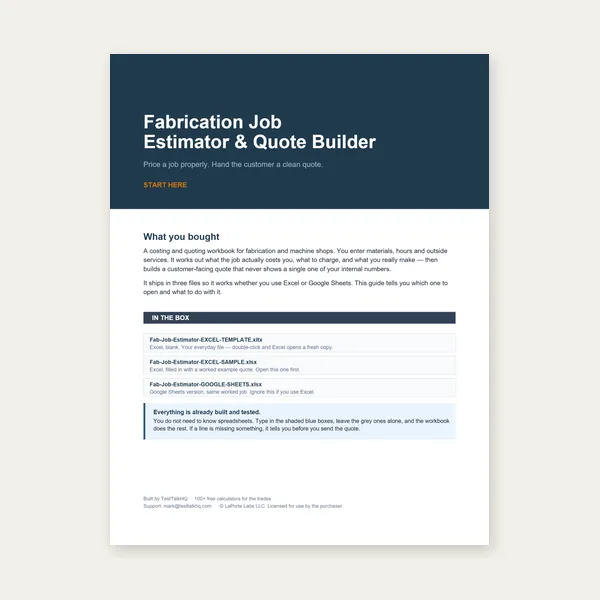
Price the job, then hand over a quote with no internal numbers.

Excel or Google Sheets. Best on a computer.

$29.00

Buy
BEST VALUE
Welding Complete Bundle

Welding Complete Bundle

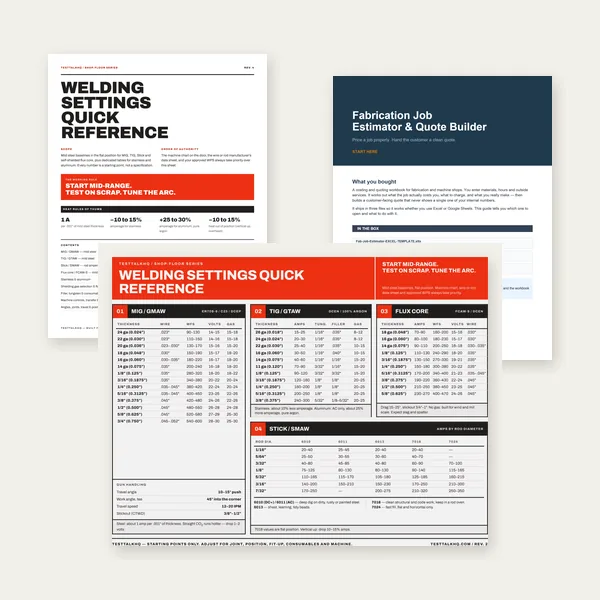
Card, 19-page guide and the estimator workbook. All six files.

Excel or Google Sheets. Best on a computer.

$34.99

$45.98 if bought separately — save $10.99

Buy

See all Welding products

Checkout opens in a new tab.

Recommended Measurement & Drilling Tools

Measure accurately, mark precisely, and drill with confidence — products from the TestTalkHQ affiliate catalog
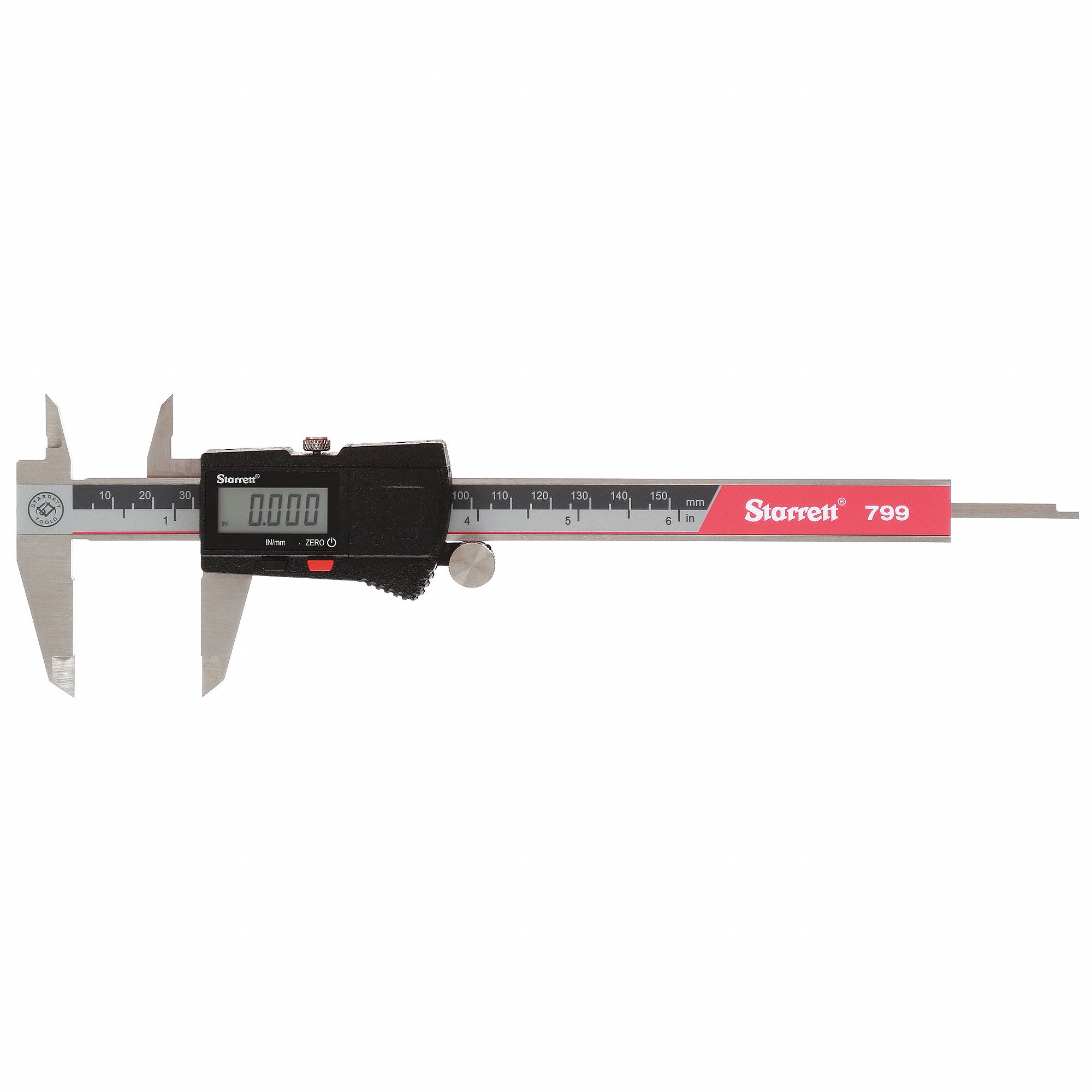
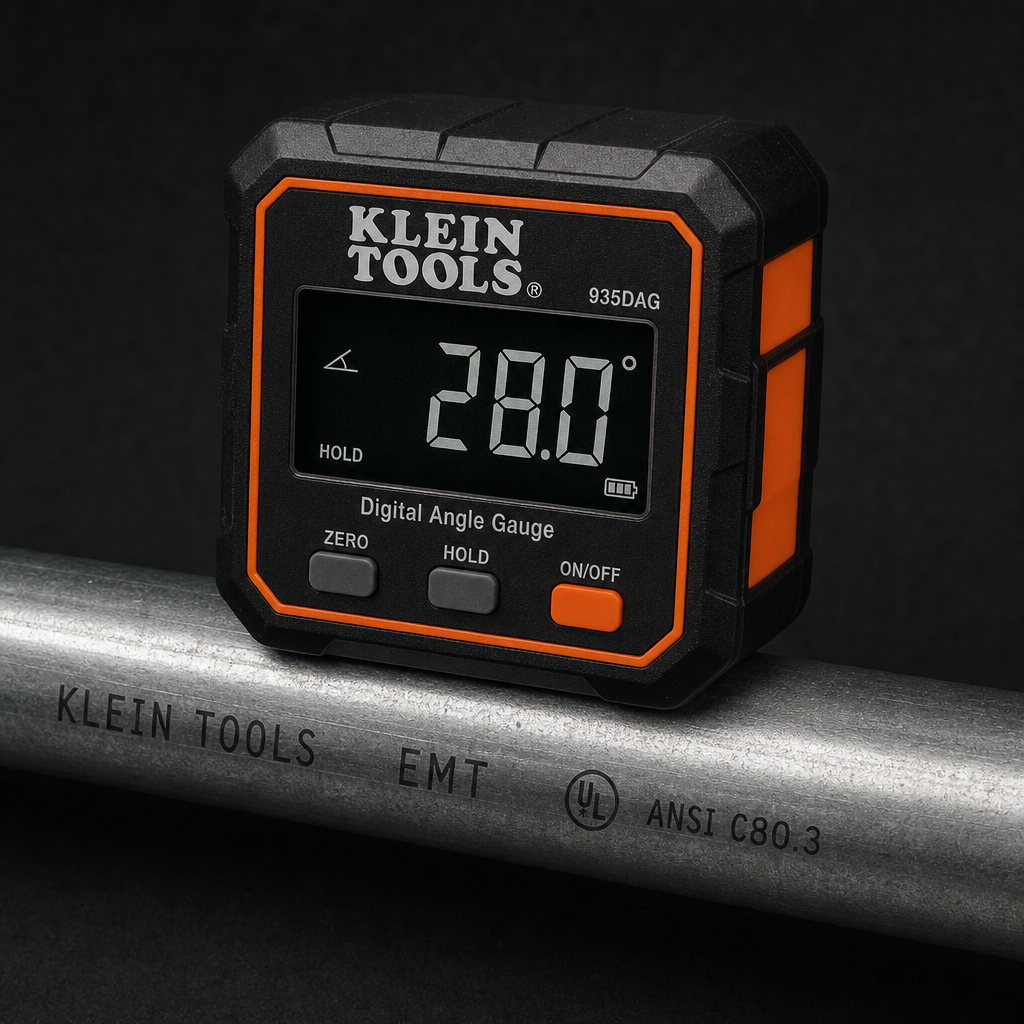
Angle Klein Tools digital angle gauge with magnetic base

Klein Tools 935DGGP Digital Angle Gauge

  • Magnetic base for fixture setup
  • Confirm angles match template input
  • Clear digital readout
  • Shop-floor durable
Check Price
Precision Starrett edge finder for mill and drill press

Starrett 827A Edge Finder

  • Locate workpiece edges accurately
  • Establish origin (0,0) on the mill
  • Pairs with template or G-code workflow
  • Shop standard for CNC setup
Check Price
Drill BOSCH CO14B 14-piece cobalt drill bit set

BOSCH CO14B Cobalt Drill Bit Set

  • Cobalt M42 for hard steel drilling
  • 14-piece set covers common hole sizes
  • Red oxide finish resists corrosion
  • Pilot and final-size in one set
Check Price
Drill IRWIN 29-piece black oxide metal drill bit set

IRWIN Black Oxide Drill Bit Set 29-pc

  • Black oxide reduces friction
  • 29 bits from 1/16" to 1/2" by 64ths
  • High-speed steel for general use
  • Metal index case keeps bits organized
Check Price

As an Amazon Associate, TestTalkHQ earns from qualifying purchases. Catalog gap: no dedicated center punch, transfer punch, or drill press in the affiliate CSV at publish time.

Related Calculators & Guides