Move, rotate, delete, or nest an individual toolpath after the file's already posted — without dragging the whole job back through CAM.
Move a part in Fusion 360 after you've already generated the toolpath, and nothing updates on its own. The toolpath still reads as up to date until you find the "capture position" step, run it, and recompute — skip that and you're posting G-code for a part that isn't where your model says it is anymore. It's not a bug, it's how CAM software works: the toolpath is linked to your CAD geometry, and the moment you nudge a part instead of re-cutting the whole job, that link either forces a full recompute or hands you G-code that's just wrong. Vectric, Fusion, whatever you're running — once the file's posted, moving something on the sheet means going back through the chain again.
Most of the time the fix you actually need is small: shift one part two inches left, rotate a cutout 15 degrees so it clears a bad spot in the sheet, or pull one bad toolpath out entirely. None of that should require a full CAM re-run.
The Two Ways People Fix This Now — And What Each One Costs You
Hand-editing the .tap file in Notepad++. It works — a .tap file is just text, and X/Y coordinates are right there to change. The cost is you're editing blind. You're retyping coordinates without seeing where the toolpath actually lands relative to your material or your machine's travel limits. Get a decimal wrong and you won't know until the bit is already moving.
Reopening CAM and redoing the toolpath. This is the "correct" way to do it, and it's also the expensive one. For a two-inch nudge, you're reopening the CAM software, finding the operation, capturing the new position, recomputing, and reposting — real time spent on a change that should take seconds.
What the TAP File Editor Actually Does
TestTalkHQ's TAP File Editor opens a .tap or G-code file and shows you every cut as a separate, selectable toolpath. Click one and it highlights — no hunting through text for the right coordinates.
Nobody else lets you click an individual toolpath and reposition it on its own, without re-running the whole program through CAM. Here's what that looks like in practice:
- Click a cut to select it. The selected toolpath turns a distinct gold/amber so you always know exactly what you're about to move.
- Drag to move it, Alt+drag to rotate it around the selection's center — no separate rotate tool, just hold Alt and drag.
- Arrow keys nudge it for small, precise adjustments; hold Shift for a finer step.
- Delete removes a bad cut entirely. Ctrl+Z undoes any of it if you change your mind.
- Board size and machine limits are checked separately, with different warning colors. Set your board width and height and the editor flags anything that doesn't fit your material. Set your machine's travel limits separately and it flags anything that would actually crash the machine — because those are two different problems, and conflating them is how people end up either wasting good material or hitting a hard stop they didn't see coming.
- "Select Out-of-Bounds" auto-selects everything past whichever boundary you're checking, and "Clip to Machine Limit" trims it in one pass instead of you hunting for it manually.
- Bit-diameter kerf shown to scale, so you're looking at the actual width the cut will remove — not just a thin line standing in for a quarter-inch bit.
It runs entirely in your browser. Nothing you upload leaves the page — there's no server round-trip, no account, no upload to lose track of.
The Nesting Problem CAM Doesn't Solve
This isn't a hypothetical gap. Search CNC router forums and you'll find threads like the one on CAMheads titled "Nesting solution for merging toolpath files" — someone trying to combine multiple parts' toolpaths onto one sheet without a clean way to do it. That's a recurring ask, not a one-off. Most CAM software nests parts before it generates the toolpath. Once the file's posted, if you want to tighten up the layout, add a part, or shift something to fit more on the sheet, you're back to square one — unless you're editing the toolpaths directly.
How to Use It
- Open your
.tapfile in the editor. - Click a cut to select it — it'll turn gold/amber so you can see exactly what's selected.
- Drag it where you want it, Alt+drag to rotate it around its center, or use the arrow keys to nudge it (Shift for fine adjustments).
- Set your board width and height so the editor can flag anything that doesn't fit your material.
- If you want crash protection too, set your machine's travel limits separately — this is a different check from the board-fit check, and you can turn it off if you don't need it.
- Use "Select Out-of-Bounds" to catch anything off the material or past your machine limits in one click, and "Clip to Machine Limit" or Delete to deal with it.
- Save as a new
.tapfile when the layout looks right.
Hitting parse errors, a nest that looks wrong, Select Out-of-Bounds false hits, or Clip to Machine Limit surprises? See TAP File Editor Troubleshooting.
FAQ
What is a .tap file?
A .tap file is a plain-text G-code file — the toolpath instructions your CAM software generates for a CNC router or mill. The .tap extension is a holdover from paper tape, but the content is the same G-code your machine reads to move the tool.
Can I edit G-code without going back into CAM?
Yes, for repositioning, rotating, or removing existing toolpaths. What you can't do without CAM is generate a brand-new toolpath from scratch — this tool edits what's already there, it doesn't create new cutting operations from a drawing.
Will a mistake in the editor crash my machine?
No — nothing in the editor runs on your machine. It's a visual editor and checker; the file only moves your machine once you load the saved result onto your controller. The boundary checks exist specifically to catch problems before that happens.
Does my file get uploaded anywhere?
No. Everything is parsed and edited in your browser. Nothing leaves the page.
Want to see where per-toolpath editing fits beside simulation and text-level G-code editing? Read our G-code/TAP viewer comparison covering NCViewer, CutViewer, G54.APP, and the TestTalkHQ TAP Editor.
Built for the Shop Floor
Any trade
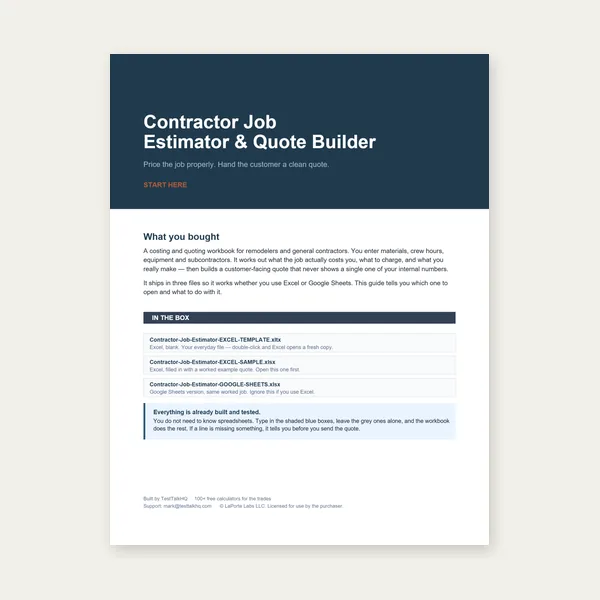
Contractor Job Estimator
Price remodels and GC work, then send a quote with no internal numbers.
Excel or Google Sheets. Best on a computer.
$29.00
BuyCheckout opens in a new tab.